
Bring news and documents from SharePoint to employees who don’t work at a desk.
EngagyApp delivers content published on your intranet straight to the phones of production, warehouse and field teams. Employees sign in with a PIN, no Microsoft 365 license required, and confirm important messages with a single tap, so you always know who has read them.
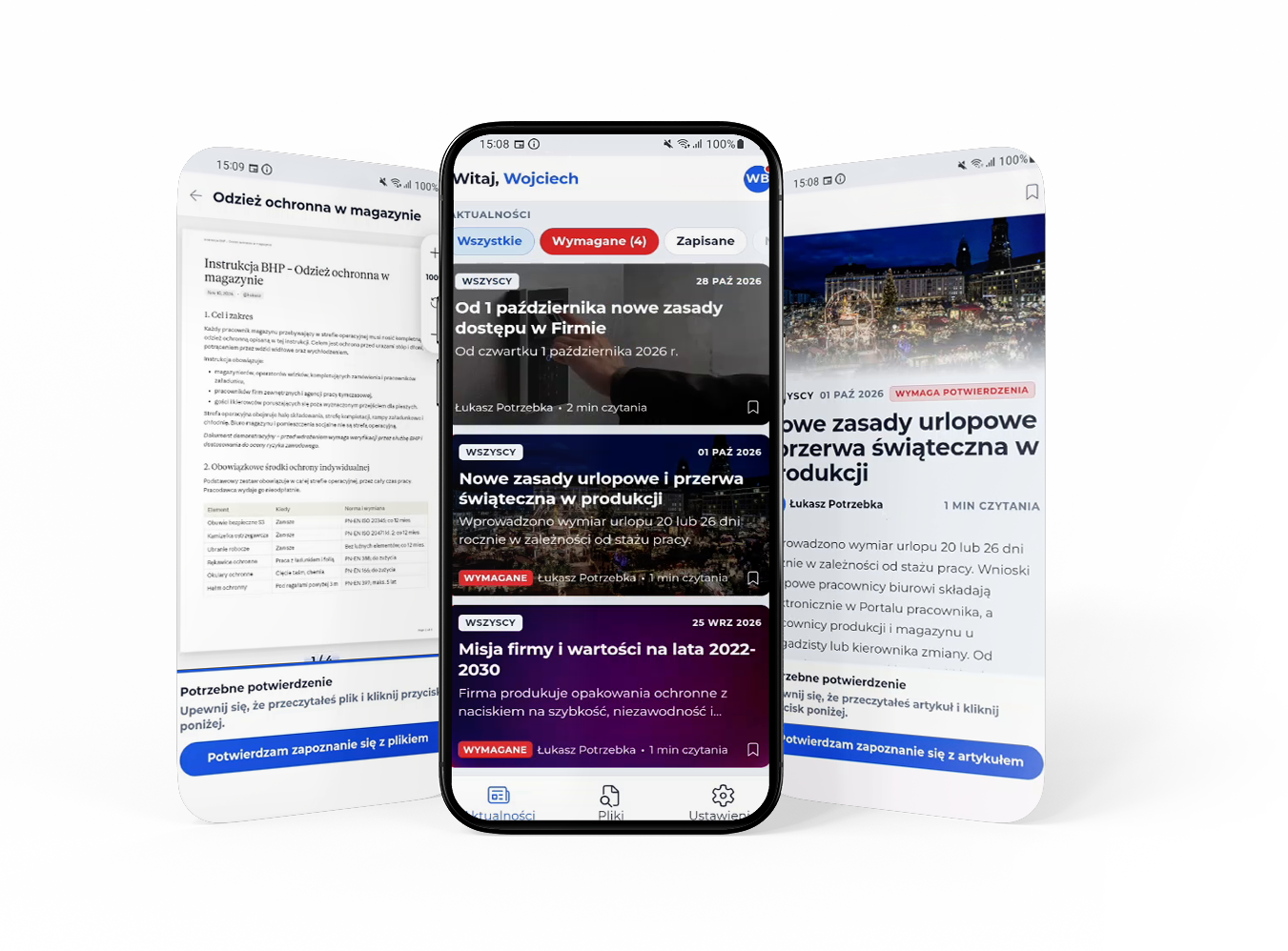

Frontline employees sign in with a PIN. They don't need a Microsoft 365 account or license

Write once in SharePoint. Office staff get it in Teams, frontline teams in the app

Read confirmations and reports by department and location replace the notice board
A new health and safety instruction is pinned to the board by the locker room, and shift changes are passed on by the supervisor. Without a computer or a Microsoft 365 license, frontline employees often have no other access to company information. EngagyApp changes that without extra work for your editors.
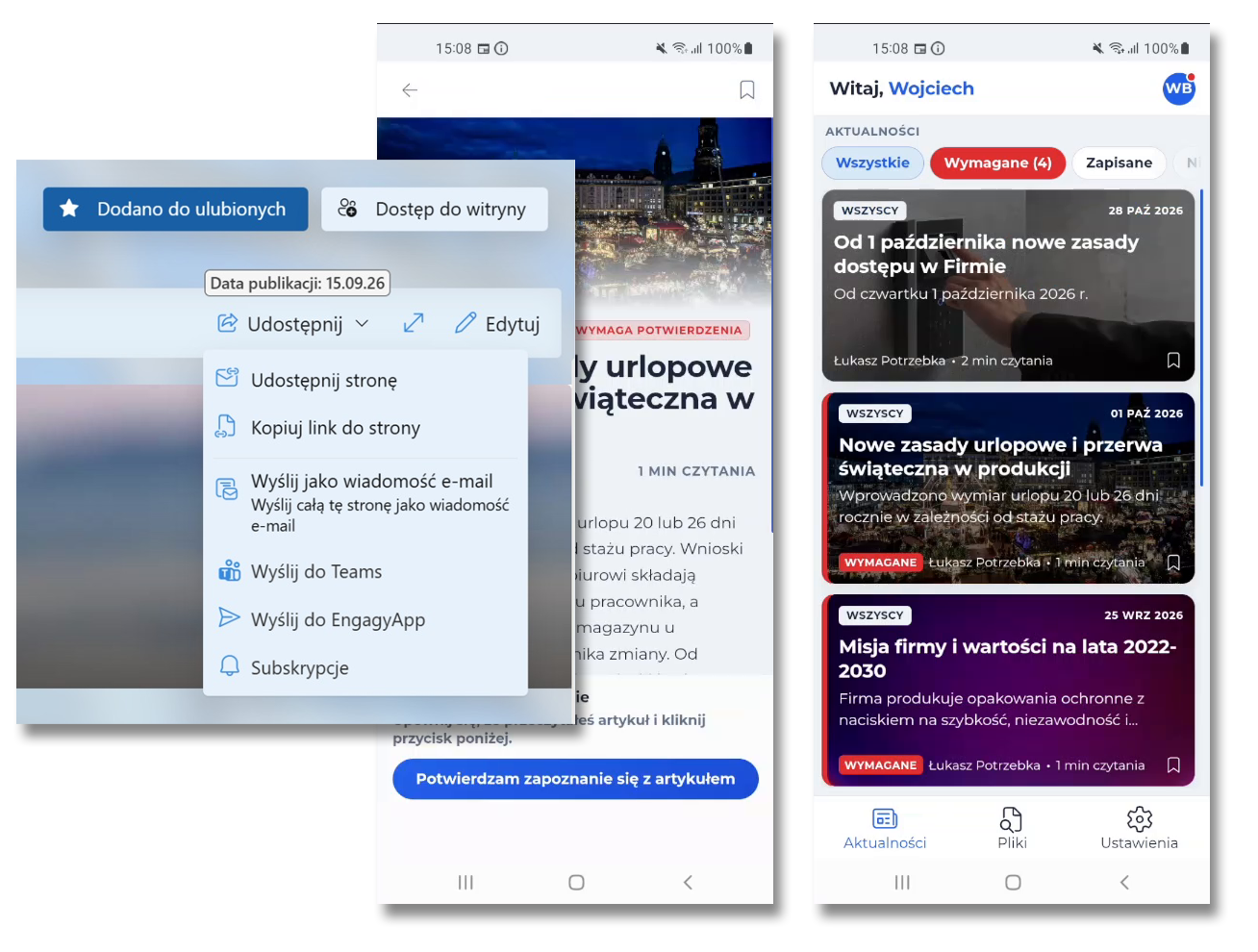
Editors publish a page in SharePoint as usual and select “Send to EngagyApp” from the Share menu. They choose the target departments and locations and decide whether the content requires confirmation. Employees see the update in the app right away, with reading time and the option to save it for later.
Instructions, policies and procedures reach employees the same way. In a SharePoint document library, select “Send to EngagyApp” on a file and set its title, category and audience.
In the app, files are grouped into categories such as Health & Safety, with counters and a “Required” label. PDFs open directly in the app, with zoom, and after reading, employees confirm they have reviewed the document.
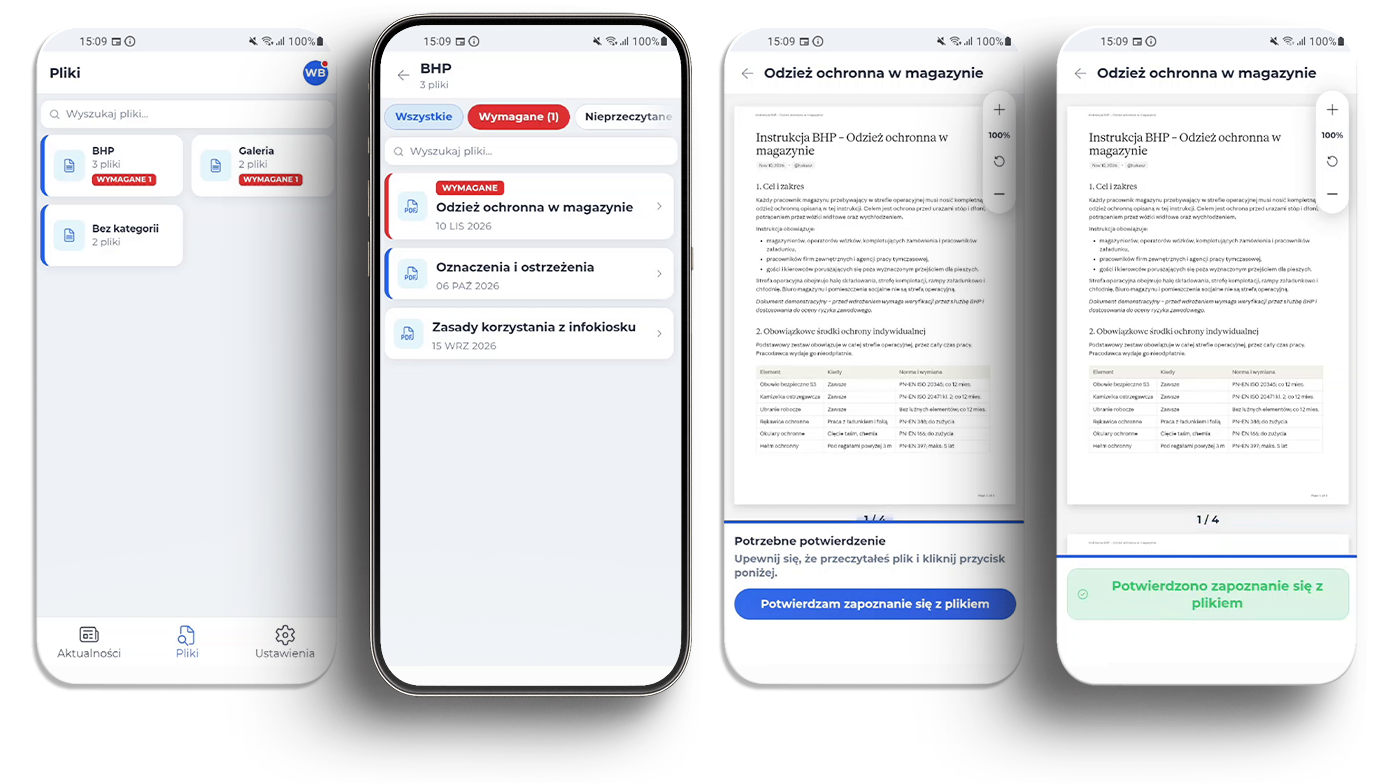
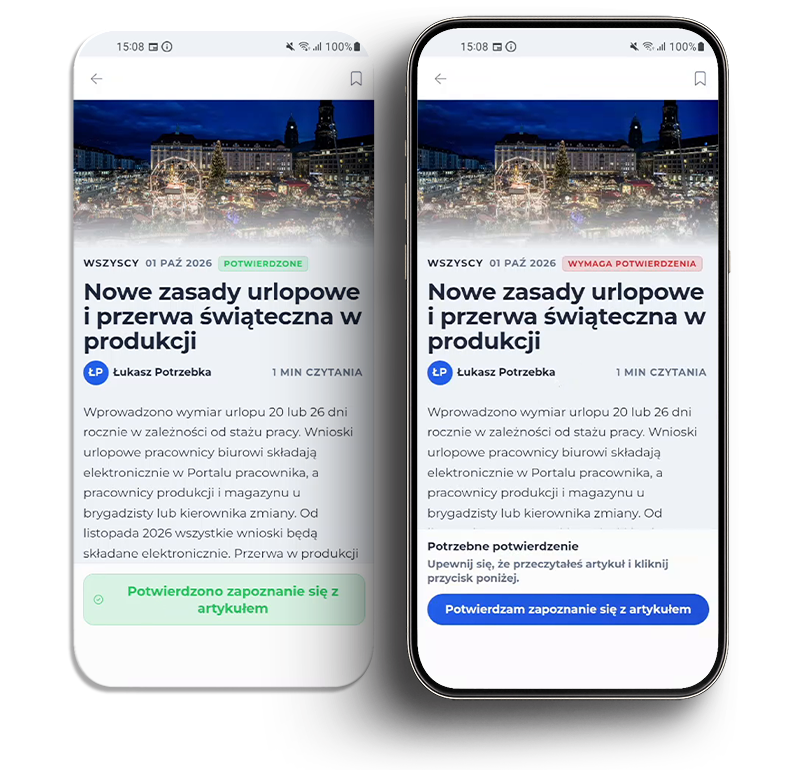
Not every message carries the same weight. Content marked as “Required” has its own filter in the app, and a banner under the article or document asks the employee to confirm it.
It takes one tap: “I confirm I have read this.” The banner stays until the employee confirms, so updates on safety, compliance and workplace rules don’t get lost among other messages.
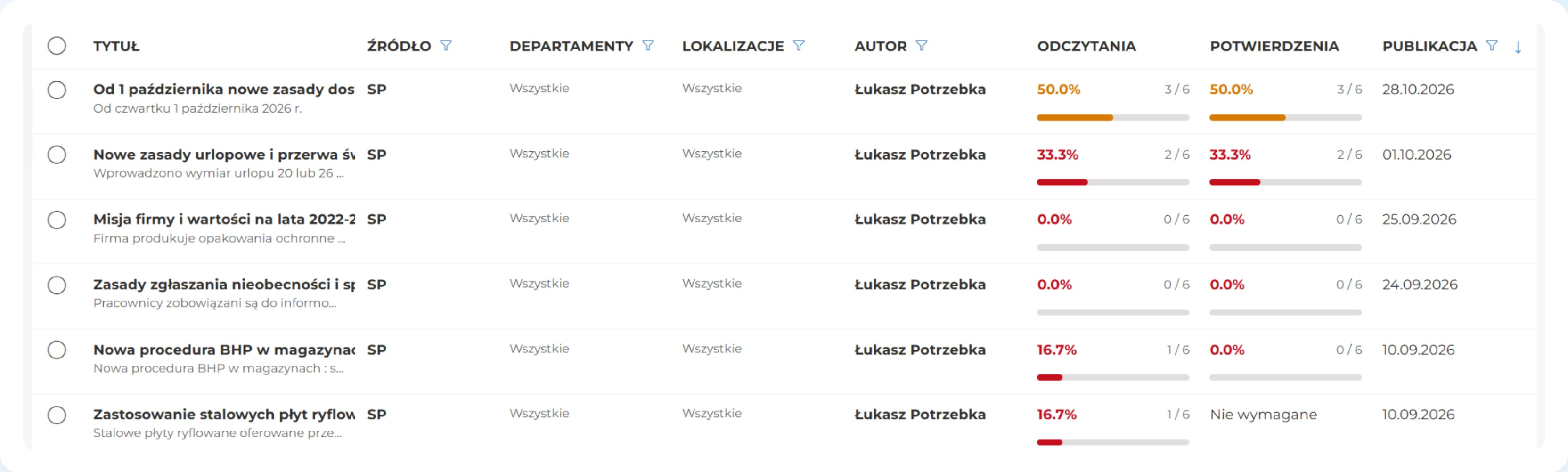
The Engagy360 admin panel shows reads and confirmations, as percentages and counts, for every news item and file. The list also shows the content source (SharePoint or Engagy360), the audience and the publication date.
Filter results by department and location and download a confirmation report as CSV, for example for your health and safety team or an audit. A month later, you don’t have to guess who has read the new instruction. It’s all there in black and white.
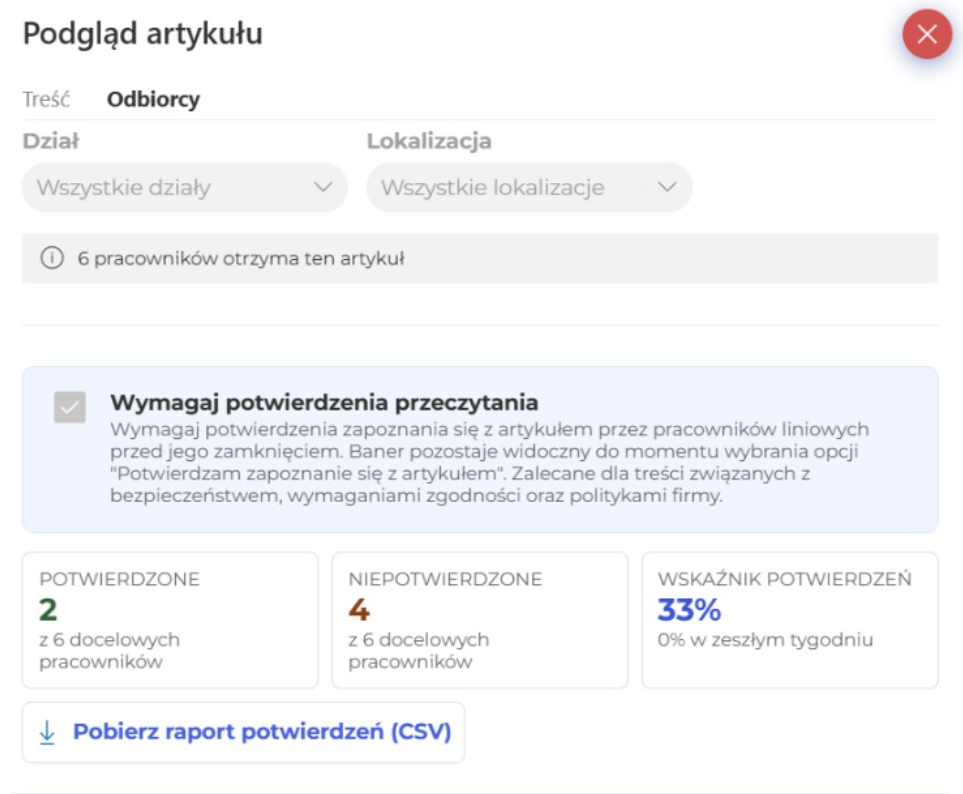

Upload a list using the ready-made template and review new accounts, updates and errors before importing

Activation code or card, PIN, and optional Microsoft Entra ID sign-in

Retention of inactive accounts up to 60 months, legal hold and EU hosting
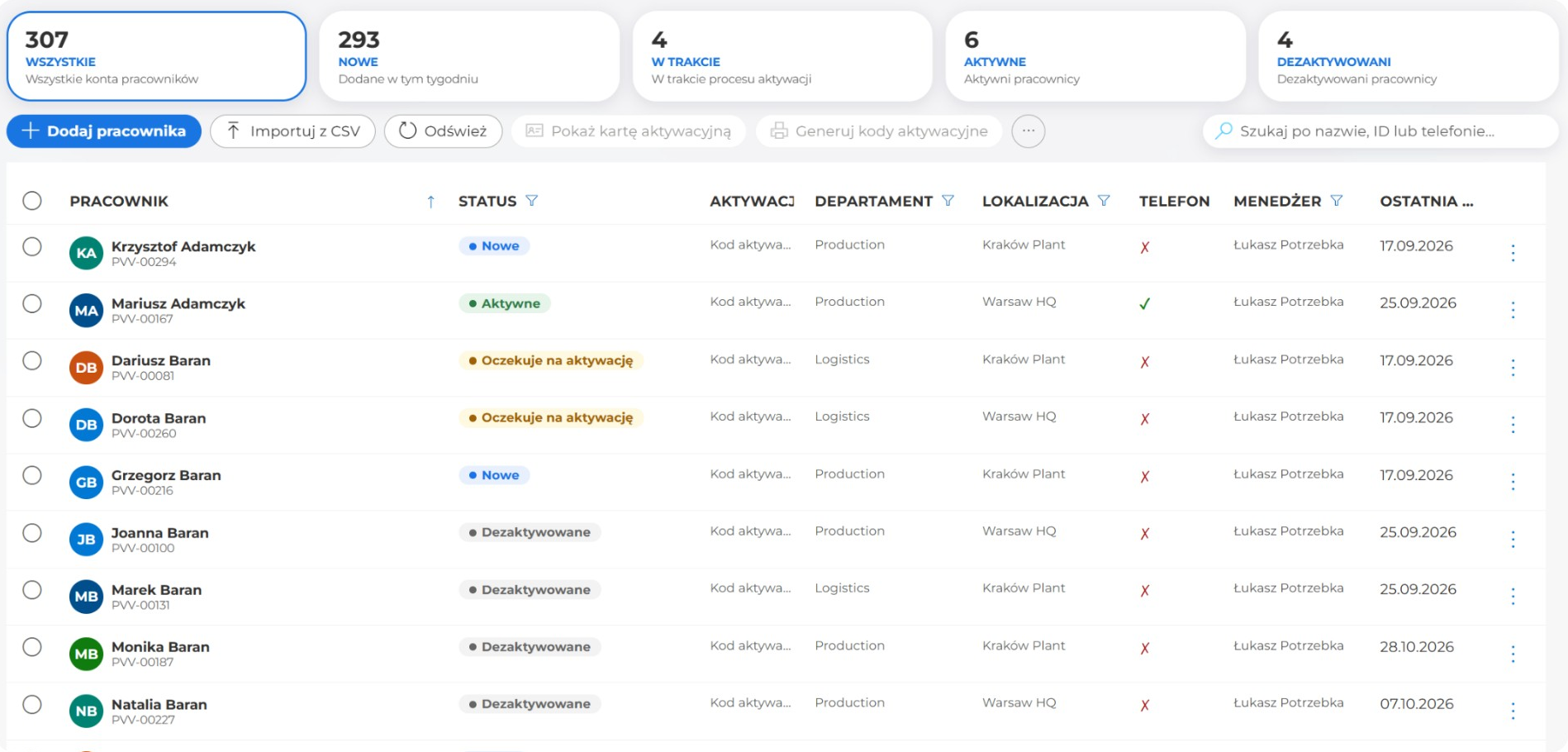
Create employee accounts in the admin panel, without involving IT and without Microsoft 365 licenses. Counters show how many accounts are new, pending activation, active or deactivated.
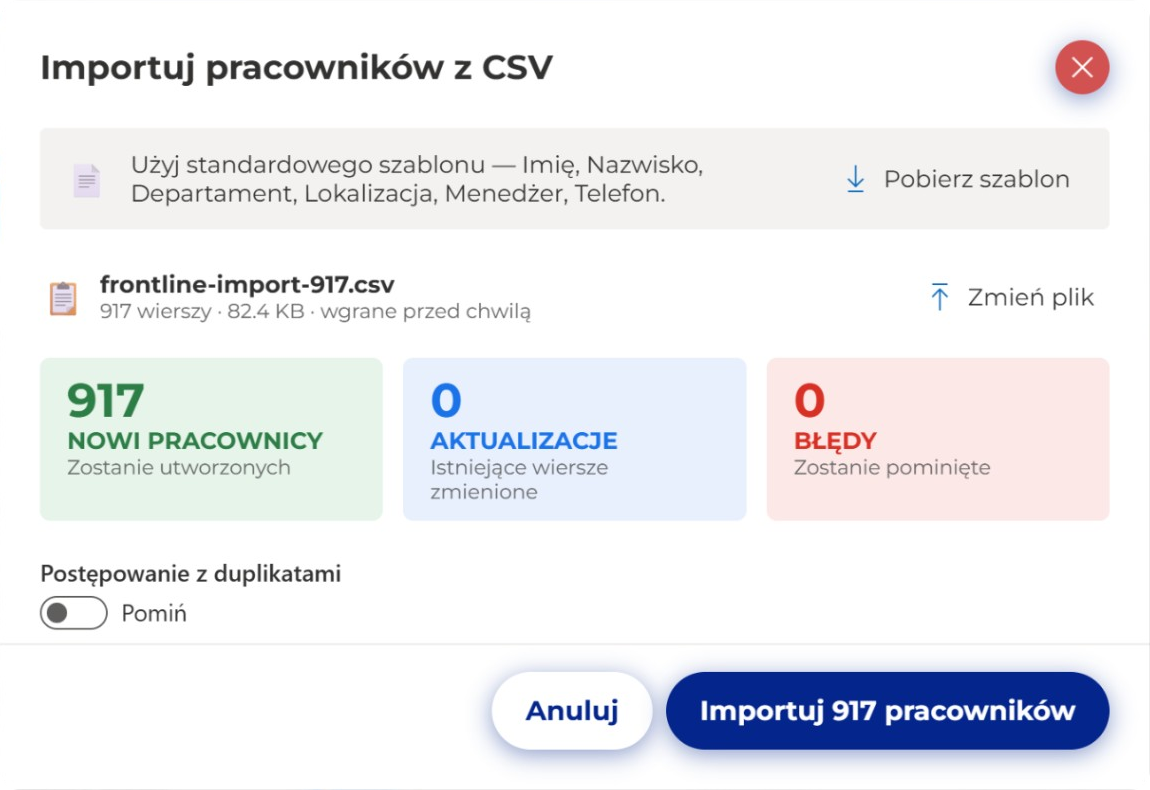
Add hundreds of employees with a single CSV import. Before you confirm, you see how many accounts will be created, which will be updated and which rows contain errors. New employees get activation codes or a printable activation card.
Employees activate their account with a code or card, then open the app with a PIN. No passwords to remember and no company email account needed.
If your employees have Microsoft accounts, you can enable Entra ID sign-in with a one-time tenant admin consent. In their profile, employees see their department, location and content awaiting confirmation, and choose a light, dark or system theme.
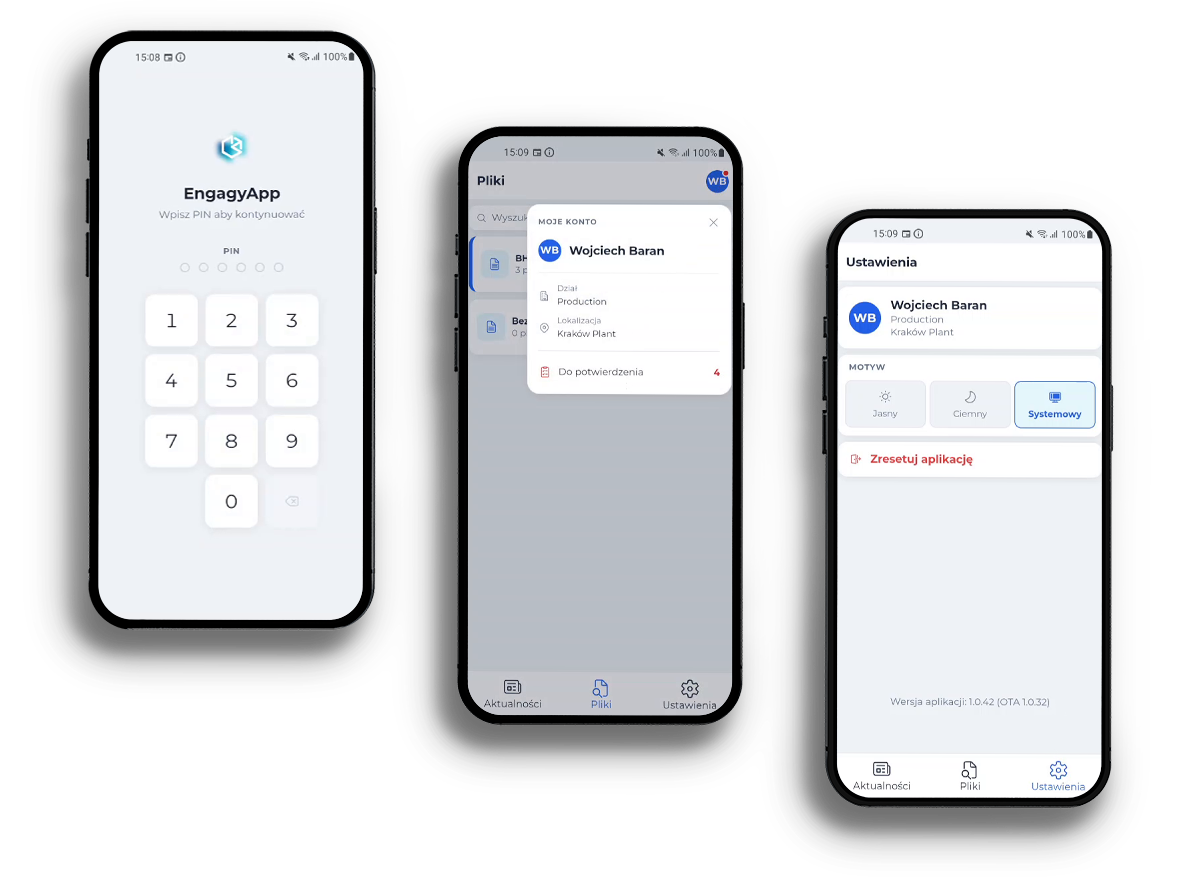
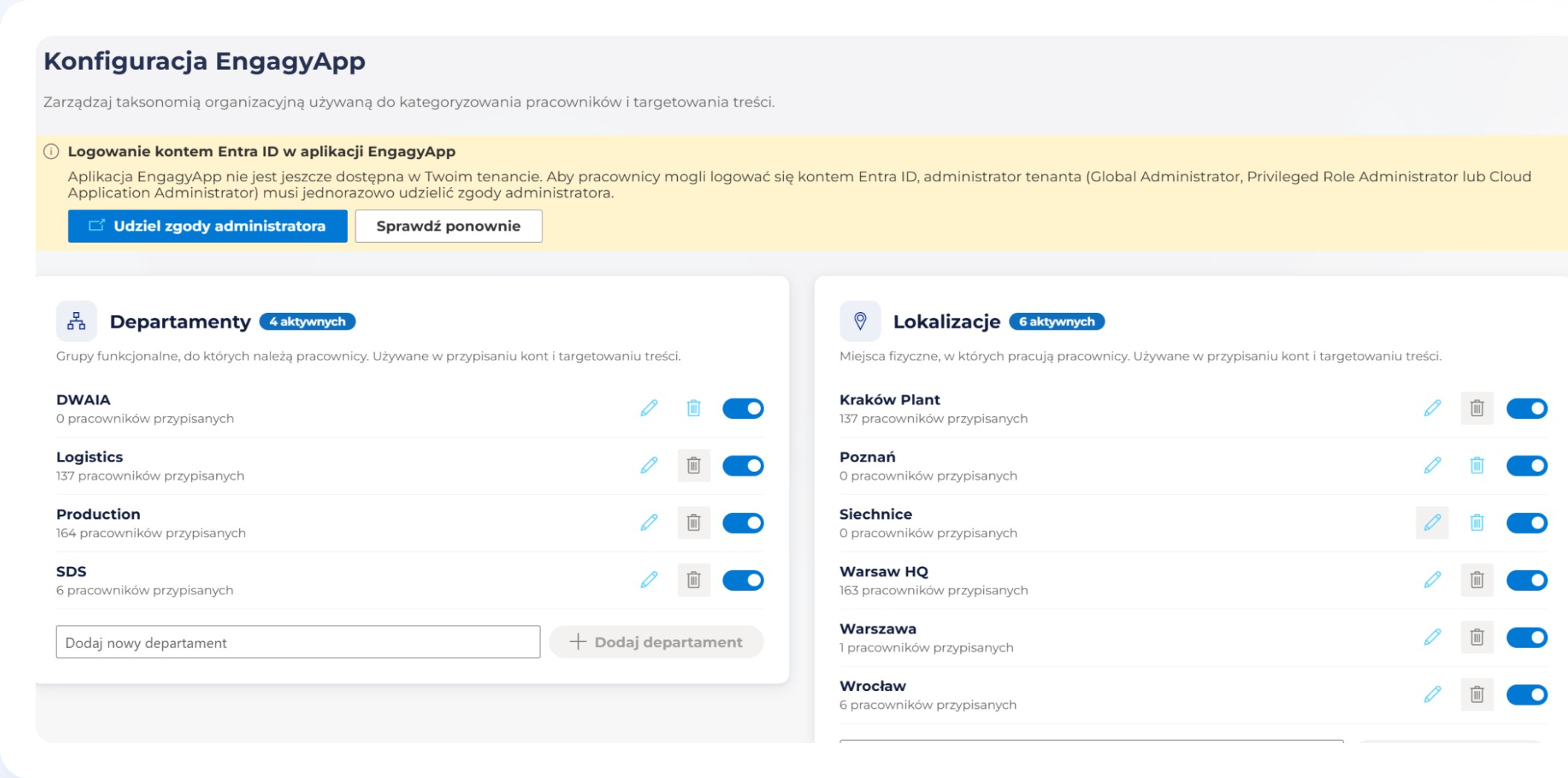
Departments and locations mirror the structure of your organization: plants, warehouses, offices and teams. They are used to assign accounts and target content, so a message for the Kraków plant won’t land in the Poznań warehouse.
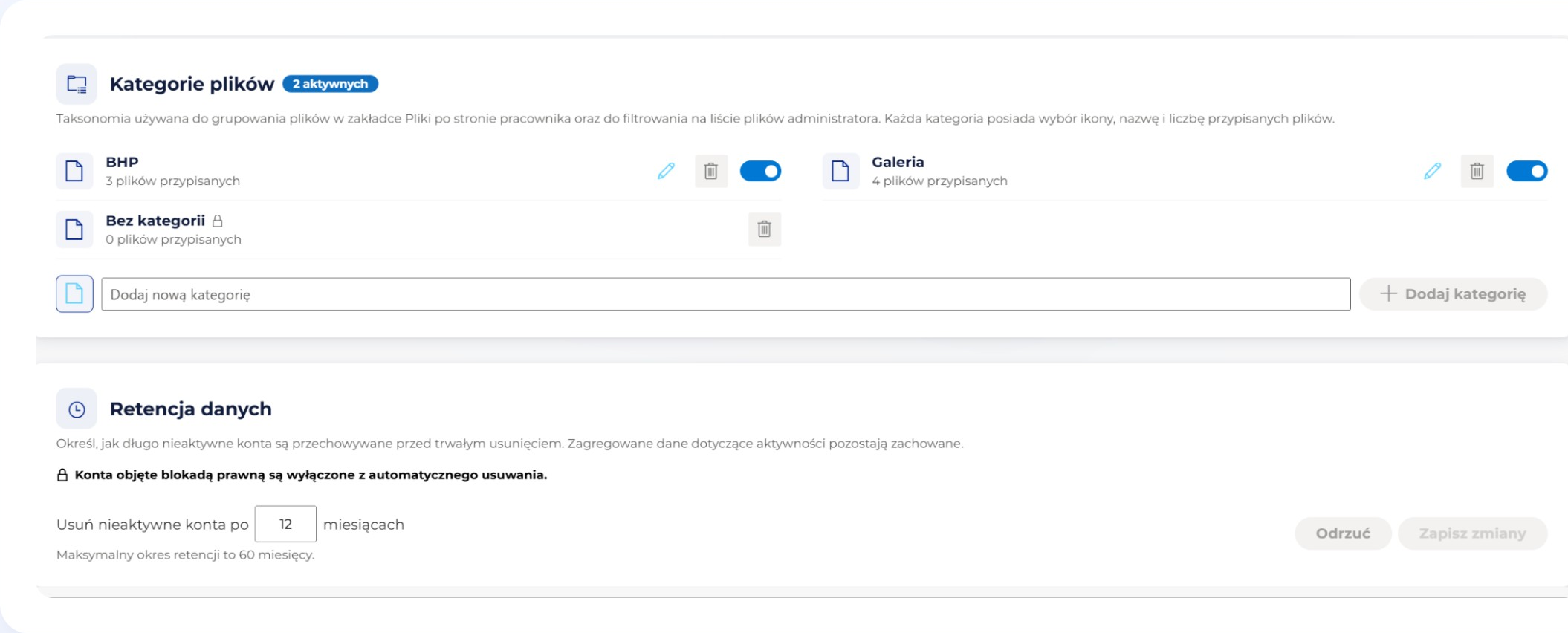
File categories organize documents in the app and make it easy to filter the list in the admin panel. Each has its own icon, name and file count.
Decide how long to keep inactive accounts, up to 60 months. After that, they are permanently deleted, while aggregated activity data is retained for analysis.
Accounts under legal hold are excluded from automatic deletion. The entire service is hosted in the EU.
We develop the app together with our customers. In the first half of 2027, we’re adding:

The same news and documents, including confirmations, in a web browser

Employees ask anonymous questions about an article or document, and authors reply

Recognition with badges, a team recognition board and statistics for managers

Payslips, tax forms and other personal documents visible only to the recipient. Sent manually, as a ZIP package or via API
Book your personalized online demo. We’ll show you EngagyApp and the admin panel using your organization as an example, then prepare a proposed implementation scope and quote.
Schedule a demo